It’s never been easier to keep the fun going at STAR 8. Whether you're just starting or you’re already in the middle of the action, adding funds to your account is a breeze. Let's get you set up!
Click on 'Tools' in the menu and then choose 'Top up / Withdraw.'
Click on 'Instant top up (channel2)' to get started.
Choose the bank you want to use for the top-up.
Type in the amount you want to top up and press 'Next.'
Enter your username and click 'Next' to continue.
Check the security image and enter your password. Then click 'Login.'
Go to your banking app and tap on 'Approve' to authorize the payment.
Your top-up has been completed successfully.
That's it! You're ready to enjoy your games.
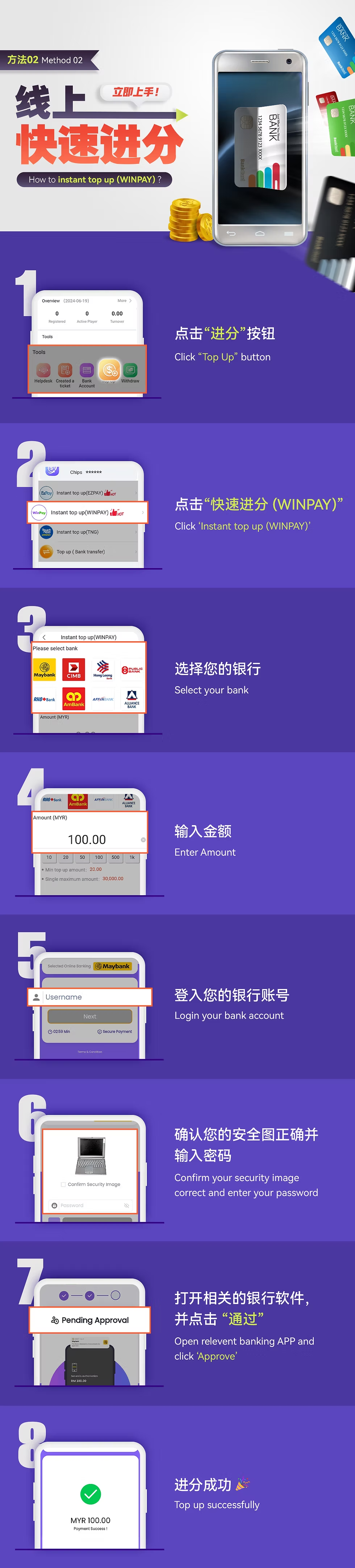
Open your app and tap on the "Top Up" button, found at the bottom in the "Tools" section.
From the available options, click on "Instant Top Up (WINPAY)" to move forward.
A list of banks will appear, select the one you want to use.
Enter the amount you'd like to top up. For instance, you can enter "100.00" MYR.
Next, log into your bank account by entering your username and following the prompts.
Check the security image for accuracy, then type in your password and proceed.
Open your bank app and approve the payment by selecting "Approve."
Once your payment is approved, you’ll see a confirmation message like "MYR 100.00 Payment Success!"
Open the app and find the "Top Up" button at the bottom in the "Tools" section. Tap it to start.
A list of options will appear. Select "Instant Top Up (TNG)" to continue.
Next, type in how much you want to top up. Double-check the amount and click "Next."
Take a moment to review the amount. If everything looks correct, tap on "Touch 'n Go eWallet" to confirm.
Enter your TNG account details and password to log in and move forward with the top-up.
Once you're sure everything is right, click the "Pay" button at the bottom to proceed.
Next, open your TNG app. A prompt will appear asking if you'd like to proceed. Click "Proceed" to continue.
After your payment is processed, you’ll get a confirmation screen. Tap "Back to Merchant" to return to the merchant’s page.
Finally, you’ll see a screen that confirms your top-up was successful. All done!

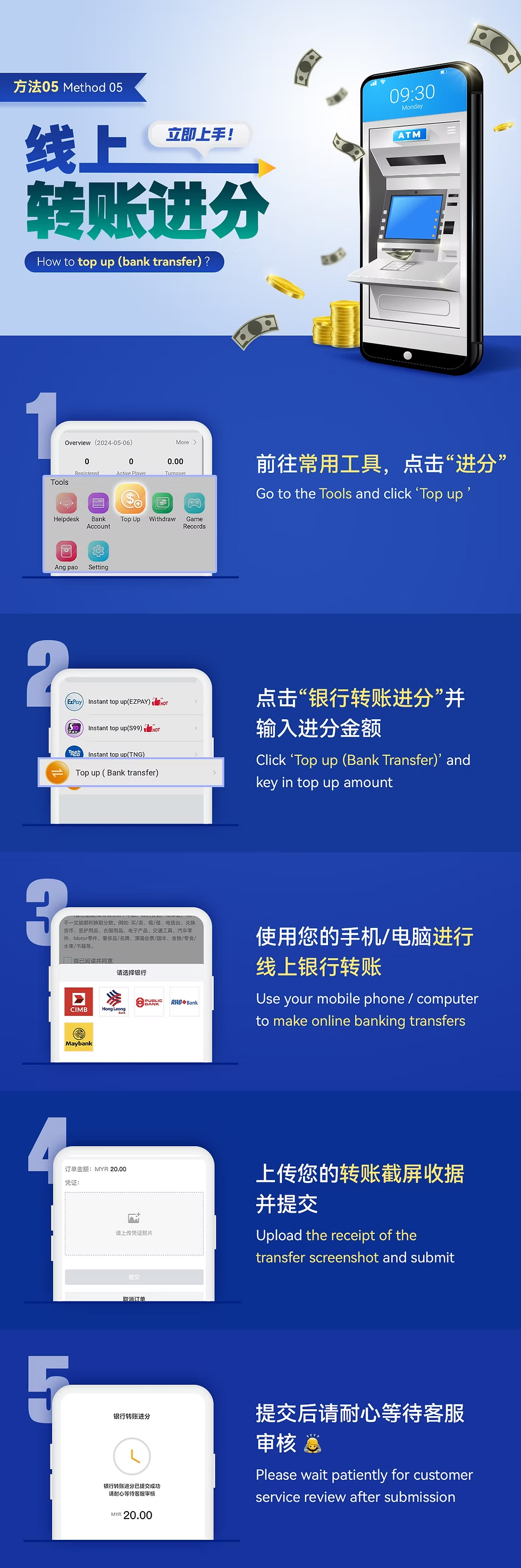
First, open the app and go to the "Tools" section. Tap on the "Top up" button to begin.
Next, you’ll see different top-up options. Tap "Top up (Bank Transfer)" and enter the amount you want to top up.
Now, log in to your online banking through your phone or computer. Choose the bank you want to transfer from and finish the transaction.
Once you’ve completed the transfer, take a screenshot of your receipt. Go back to the app and upload the screenshot, then press "Submit."
After submission, relax for a bit! Customer service will review your request, and your top-up will be processed soon.
You’re just a few clicks away from adding funds and getting back to your favorite games! Follow the easy steps, and you’ll be all set. If you need any help, our friendly team is just a message away.
As a leading international online gaming company, Star8 proudly features world-class game information experts, a helpful and experienced customer service team, and a professional marketing and state-of-the-art technical team. This collaborative effort ensures that our customers, with Star8 at the forefront, can indulge in the ultimate gaming experience within a safe and secure environment. We prioritize the satisfaction and safety of our players through the combined expertise of our dedicated teams